When a Boolean is not working in Blender, the cause is almost always one of five things: a wrong setting on the modifier, shapes that do not actually overlap, a solver that cannot handle the mesh, non-manifold geometry, or flipped normals and unapplied scale. Check them in that order, and switch the Solver to Exact early, because it handles the widest range of meshes.
This guide builds on our main Blender Boolean modifier guide and uses the Boolean modifier page of the Blender Manual (5.2 LTS) for the solver rules. It covers the Difference and Union cases people search for, and gives a symptom table at the end.
Sources: Boolean modifier page of the Blender Manual
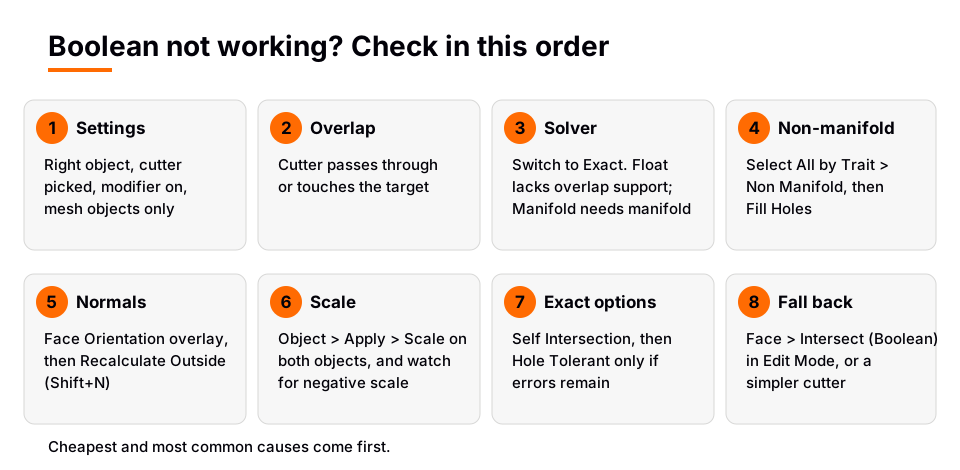
The diagnostic order
- Modifier settings. The modifier is on the object you want to keep, it is enabled, an Object or Collection is picked, and the Operation is the one you want.
- Overlap. The cutter really passes through or touches the target.
- Solver. Change the Solver to Exact. If that fixes it, the problem was the solver or overlapping faces.
- Non-manifold geometry. Find holes and stray edges on both meshes and fix them.
- Normals. Make sure faces point outward.
- Scale. Apply the scale on both objects.
- Exact solver options. Turn on Self Intersection, and Hole Tolerant only if errors remain.
- Fall back. Use Edit Mode Intersect (Boolean) or simplify the cutter.
The sections below explain each check.
Check the modifier settings
Many "Boolean not working" cases are setup mistakes, so start here.
- Right object. The object that owns the modifier is the one that is kept. If you added Boolean to the cutter, the cutter is what gets cut. Remove the modifier and add it to the target.
- Object picked. With Operand Type set to Object, the Object field must hold the cutter. An empty field does nothing.
- Modifier enabled. Check the viewport and render toggles in the modifier header.
- Mesh objects only. The manual describes the source as a mesh object or a collection of mesh objects. A curve or text object has to be converted to a mesh first.
- Collection rules. With Operand Type set to Collection, the manual says that if the Solver is Float, the Intersect operation is not allowed.
Boolean Difference not working
Difference cuts the source meshes out of the modified mesh. If nothing is cut, the usual causes are, in order: the modifier is on the wrong object, the cutter does not pass through the target, or the cutter has holes. If the cut appears in the viewport but looks strange after you apply the modifier, follow the checks below for non-manifold geometry and normals.
A cutter that only touches the surface with a face lying exactly on it is a hard case. The manual says the Float solver lacks support for overlapping geometry and the Exact solver has full support for it, so switch to Exact first. It also helps to make the cutter pass fully through the target rather than end on its surface.
Boolean Union not working
Union adds the source meshes to the modified mesh while removing interior faces. If it seems to do nothing, check these two things first:
- The shapes do not overlap. Two separate shells that never touch have no interior faces to remove, so the result still looks like two objects. Move them so they intersect.
- The source object is still visible. The modifier does not hide the source object. You see the merged mesh plus the original, which looks like nothing changed. Hide the source or move it away to see the result.
If the shapes overlap and the result has missing faces or holes, treat it as a mesh problem and continue with the steps below.
Change the Boolean solver
The manual describes three solvers, and the choice explains many failures.
| Solver | What the manual says | Failure it explains |
|---|---|---|
| Float | Simple, good performance, no support for overlapping geometry | Glitches where faces overlap or coincide |
| Exact | Best results, full support for overlapping geometry, much slower | Slow viewport on dense meshes |
| Manifold | Usually fastest, only works on manifold meshes (plus Difference with a plane) | No result at all on a mesh with holes |
Two rules follow from this. If Manifold gives you nothing, a mesh is not manifold, so use Exact, or fix the mesh. If Float gives glitches, use Exact. The manual says that only manifold meshes are guaranteed to give proper results, and non-manifold meshes, especially ones with holes, usually work but might give odd glitches and artifacts. The Float solver also has an Overlap Threshold, the maximum distance between two faces to consider them as overlapping. The manual suggests trying Exact if the result is still wrong.
Find non-manifold geometry
A manifold mesh is a closed solid with no holes. Anything else can break the modifier. To find problems, select the object, press Tab for Edit Mode, switch to vertex or edge select mode, and choose Select > Select All by Trait > Non Manifold. The manual says this entry is only available in vertex and edge selection modes. Its options show what is wrong:
- Wire: edges that do not belong to any face.
- Boundaries: edges at boundaries and holes.
- Multiple Faces: edges that belong to three or more faces.
- Non Contiguous: edges that belong to exactly two faces with opposite normals.
- Vertices: vertices that are isolated, belong to a wire edge or one with multiple faces, or are the only vertex connecting two faces.
Whatever stays selected is where to look. Common fixes from the manual's Clean up menu:
- Mesh > Clean up > Fill Holes fills each hole in the selected geometry with a face.
- Mesh > Clean up > Delete Loose deletes selected vertices, edges and optionally faces that are not connected to anything.
- Mesh > Clean up > Merge by Distance merges selected vertices that are closer than the Merge Distance, which removes doubled vertices.
Run the same check on the cutter. A cutter with holes is non-manifold, and the failure shows up in the result, not in the cutter.
Check the normals
A Boolean needs to know which side of a face is inside. If faces point the wrong way, parts of the result are removed or kept incorrectly. To see them, open the Viewport Overlays popover and enable Face Orientation. The manual says it highlights the backside of faces in red, and that a face shown in red on the outside of a mesh is most likely oriented incorrectly.
To fix it in Edit Mode, select the faces and choose Mesh > Normals > Recalculate Outside (Shift+N), or use Flip on individual faces. The manual notes that Recalculate does not need a closed volume. Do this on both objects, then look at the result again.
Apply scale and check negative scale
In Object Mode, select the object and choose Object > Apply > Scale (or press Ctrl+A and choose Scale). The manual says applying resets the Scale value to 1.0 while the geometry is adjusted so the object looks unchanged. It also says applying transforms can affect how modifiers, constraints and parenting behave, since they often depend on an object's transform values.
The manual does not list unapplied scale as a Boolean requirement, so treat this as a cheap check rather than a guaranteed fix. It is worth doing for one specific case: the Apply operator has a Corrective Flip Normals option that flips surface normals when applying a negative scale, which prevents inverted shading. An object with a negative scale can have inside-out normals, which brings you back to the normals step.
Self Intersection and Hole Tolerant
These two options appear when the Solver is Exact. Both cost time, so turn them on only when you need them.
- Self Intersection: correctly handles self-intersection in the participating meshes, at the cost of performance. Use it when a mesh crosses itself, for example from stacked or overlapping parts you joined into one object.
- Hole Tolerant: optimizes the output for non-manifold geometry, at the cost of increased computational time. The manual says to enable it only when the Exact solver demonstrates errors with non-manifold geometry.
The order matters: fix the holes first if you can, then use Hole Tolerant only for the leftovers.
Symptom to fix table
| Symptom | Likely cause | Fix |
|---|---|---|
| Nothing changes | Modifier on the wrong object, empty Object field, modifier disabled | Check the modifier settings |
| Cutter is cut instead of the target | Modifier added to the cutter | Move the modifier to the target |
| Result disappears with Manifold | A mesh is not manifold | Use Exact, or fix holes |
| Glitches or missing faces | Float solver with overlapping faces | Switch to Exact |
| Holes in the result | Non-manifold cutter or target | Select All by Trait > Non Manifold, Fill Holes, then Hole Tolerant |
| Parts cut the wrong way | Flipped normals | Face Orientation, then Recalculate Outside |
| Intersect with a collection is blocked | Float solver with Operand Type: Collection | Switch away from Float |
| Odd result after scaling | Transforms not applied, or negative scale | Apply Scale, use Corrective Flip Normals |
When the modifier still fails
If the checks pass and the result is still wrong, the last options are to change the geometry, not the settings. Simplify the cutter into one closed shape, make sure its faces do not sit exactly on the target's faces, and keep it a clean solid. You can also try the Edit Mode operator Face > Intersect (Boolean), which does Intersect, Union and Difference between selected and unselected geometry of one mesh, with its own Float and Exact solvers. Our main Boolean guide explains it.
After a clean cut, you usually want to soften the edges, so read how to bevel in Blender next. For the wider workflow, see hard surface modeling in Blender.
Learn this in order with The Blender Launchpad
Boolean problems are mostly mesh problems, and mesh problems get easier once you understand topology, normals and modifiers in a sensible order. The Blender Launchpad is a members app with a roadmap of hand picked, free YouTube lessons in six stages. The second stage is hard surface modeling, after a first stage that assumes you have never opened Blender.
It is a curated playbook rather than original video lessons, and it is one payment with no subscription. It includes 1,000+ CC0 assets, HDRIs and textures that are free for commercial use.
Questions people also ask
Why is my Blender Boolean not working?
Usually the settings are wrong, the shapes do not overlap, or a mesh is non-manifold. Check the modifier, switch to the Exact solver, then look for non-manifold geometry and flipped normals.
Why is Boolean Difference not working in Blender?
Make sure the modifier is on the object you want to keep and that the cutter passes through it. If the result is wrong, change the Solver to Exact and fix holes in either mesh.
Why is Boolean Union not working in Blender?
The shapes may not overlap, so there are no interior faces to remove, or you are seeing the original source object next to the merged mesh. Make the shapes intersect and hide the source.
What do Self Intersection and Hole Tolerant do?
Both are Exact solver options. Self Intersection handles meshes that cross themselves, and Hole Tolerant improves output for non-manifold geometry. Both slow the calculation, so enable them only when needed.
How we checked this
We read these pages on November 4, 2026: Blender Manual (5.2 LTS) Boolean Modifier, Intersect (Boolean), Select All by Trait (Non Manifold), Clean up (Fill Holes, Delete Loose, Merge by Distance), Editing Normals (Flip and Recalculate), Apply (Transforms and Corrective Flip Normals) and the 3D Viewport overlays page (Face Orientation). We did not run Blender while writing this. The advice to extend the cutter past the target and the note on Union with separate shells are general modeling logic, not statements from the manual.