
To render a transparent background in Blender, open Render Properties, expand the Film panel and tick Transparent. Then open Output Properties, set Color to RGBA, pick a file format that stores alpha such as PNG, and render with F12.
This works the same way for a still and for an animation, in both Cycles and EEVEE. Below are the exact steps, the file formats that keep transparency, the two Cycles-only glass options, and the reasons a render still comes out with a solid background. Everything follows the Blender 5.2 LTS manual. If you have never rendered before, start with how to render in Blender.
How to render a transparent background in Blender, step by step
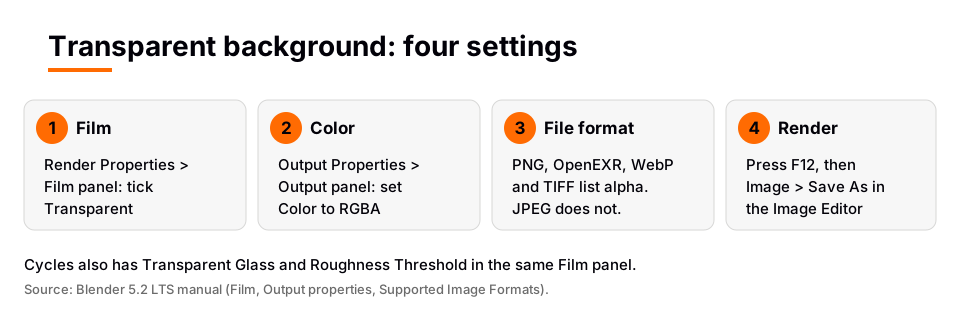
- Open the Film panel. In the Properties editor, choose the Render tab. Scroll to Film and expand it. The manual lists the panel as Render > Film for both Cycles and EEVEE.
- Tick Transparent. The manual describes it as rendering the background transparent, for compositing the image over another background after rendering.
- Open Output Properties. In the Output panel, make sure Media Type is Image. Set File Format to PNG (or another format from the table below).
- Set Color to RGBA. The manual says RGBA saves the red, green, blue and alpha channels. RGB saves no alpha, so a transparent render saved as RGB has nothing to show.
- Render. Press F12 (Render > Render Image). The picture appears in the render window.
- Save the image. A still render is held in the render buffer only. In the Image Editor choose Image > Save As and keep the format and RGBA setting. Our guide on where a Blender render is saved covers this in detail.
What you should see: the background of the saved image is empty instead of the world color or HDRI. Open the PNG in an image editor or a web page with a colored background to check. The manual describes the purpose of the option as compositing, so that is where it is meant to be used.
File formats that keep the alpha channel
Not every format can store transparency. The manual's Supported Image Formats table has an Alpha column. These are the formats most people choose between:
| Format | Alpha in the manual's table | Notes from the manual |
|---|---|---|
| PNG | Yes | 8 or 16 bit. Suggested for on-screen output or encoding into video formats. |
| OpenEXR | Yes | Float 16 or 32 bit. Suggested if you will composite or color grade. |
| WebP | Yes | 8 bit. |
| TIFF | Yes | 8 or 16 bit. |
| JPEG | No | 8 bit, no alpha. |
JPEG is the usual reason a transparent render looks solid, because the format has no alpha channel to hold the empty background. The manual also warns on the Output page that RGBA is not available for all image formats, so check the list if you cannot find RGBA for the format you picked.
For a web graphic or a product cut-out, PNG with RGBA is the simplest choice. If you plan to color grade or composite further, the manual's rule of thumb is OpenEXR.
Cycles and EEVEE: same checkbox, different extras
Both engines have a Transparent checkbox in the Film panel with the same wording. The other Film options differ. EEVEE's Film panel lists Filter Size, Transparent and Overscan. Cycles lists Exposure, the pixel filter, Transparent and two glass options.
Cycles adds two options for glass in the same panel:
- Transparent Glass: renders transmissive surfaces as transparent, for compositing glass over another background.
- Roughness Threshold: for transparent glass, keeps surfaces with roughness above the threshold opaque.
Use them for a glass bottle or a lens that you want to drop over a new background. For help choosing between the engines, see EEVEE vs Cycles.
A transparent background is not a transparent material
The Film option makes the empty background transparent. It does not change how objects look. A see-through object needs a material that is see-through, which is a different job covered in our guide to a transparent material in Blender.
In Cycles, the Light Paths page explains one detail that affects compositing. The Transparent BSDF gets special treatment, and rays pass straight through it as if there were no geometry. Other transmission shaders are treated as opaque for the alpha, so the manual says they cannot be used for alpha-over compositing, while the Transparent BSDF can. That is the reason the Transparent Glass option exists.
Rendering a transparent animation
For an animation, the same two settings apply: Film Transparent on, and Color set to RGBA. The safest route is an image sequence. Choose PNG (or OpenEXR), render the frames, and keep them as numbered files. Our guide to rendering an animation in Blender shows the frame range, file path and sequence workflow.
If you want a video file with transparency, the manual names a few options. In the Encoding panel, the ProRes 4444 profile "supports full-resolution RGB and alpha channels". The Supported Video Formats page also lists WebM / VP9 and an FFmpeg lossless video codec as supporting alpha transparency. The manual also recommends against rendering straight to a video file in the first instance, because a problem partway through can leave an unplayable file.
Transparent background not working: what to check
| Symptom | Likely cause | Fix |
|---|---|---|
| Background is black or the world color | Film > Transparent is off | Tick Transparent in Render Properties > Film. |
| Background is solid after saving | Color is RGB, or the format has no alpha | Set Color to RGBA and use PNG, OpenEXR, WebP or TIFF. |
| Transparent in Blender, solid in another app | Saved as JPEG | Save again as PNG. |
| Glass shows the old background through it | Transmissive surfaces are treated as opaque | In Cycles, turn on Transparent Glass. |
| Transparent border around a smaller image | Render Region is on without cropping | Turn on Crop to Render Region in the Format panel. The manual says it crops the image instead of rendering a transparent background around it. |
One caution. The manual describes Transparent only as rendering the background transparent. It does not say how the world lighting is treated, so judge the lighting and reflections on the object by looking at your own render with the option on and off.
Skip the node wiring with the Material & Lighting Vault
A cut-out render has no backdrop to hide mistakes, so the object, its materials and its lights carry the whole image. The Material & Lighting Vault is a Blender 5.2+ extension (the Metalight tab in the N panel) built for that part of the job. It has 1,690 procedural materials, 200 lighting setups that measure the selected objects and build themselves around them, 267 studio lights, and 67 weathering presets.
The materials work in Cycles and EEVEE and need no UVs by default. The lighting setups are tuned for Cycles, so render them there when you want the intended look. It is a tool, not a course, and you still set Film Transparent and the file format yourself as above.
If you want to learn the whole pipeline in order, The Blender Launchpad is a roadmap of hand picked, free YouTube lessons that includes a studio lighting and rendering stage for Cycles and EEVEE.
Questions people also ask
How do I render a transparent background in Blender?
Tick Transparent in Render Properties > Film, set Output Properties > Color to RGBA, and save in a format with alpha such as PNG. Render with F12 and use Image > Save As.
Why is my Blender render transparent background not working?
Usually the Film Transparent box is off, Color is RGB, or the file is saved as JPEG, which has no alpha. Fix those three and render again.
Which file format should I use for a transparent render?
PNG with RGBA for web and general use. The manual suggests OpenEXR if you plan to composite or color grade. JPEG cannot store transparency.
Does the transparent background setting work in EEVEE as well as Cycles?
Yes. Both engines have a Transparent checkbox in the Film panel. Only Cycles adds Transparent Glass and Roughness Threshold.
Can I render a transparent video in Blender?
Yes, but render an image sequence such as PNG first. The manual says ProRes 4444 supports alpha, and it lists WebM / VP9 as supporting alpha transparency.
How we checked this
We read these Blender 5.2 LTS manual pages on November 4, 2026: Cycles Film, EEVEE Film, Output properties (Output and Encoding panels), Format, Supported Image Formats, Supported Video Formats and Cycles Light Paths. We did not run Blender while writing this. The manual's Film page does not describe how world lighting behaves with Transparent on, so we make no claim about it.