To make a transparent material in Blender, select the Principled BSDF node and lower its Alpha value below 1.0, or mix a Transparent BSDF into the material with a Mix Shader. Cycles then shows the transparency directly. In EEVEE you also choose a Render Method in the material settings: Dithered for grayscale hashed transparency or Blended for colored transparency.
This guide shows both methods step by step, how to use an image's alpha channel, the EEVEE and Cycles settings that change how transparency renders, and why it sometimes looks wrong. It follows the Blender 5.2 LTS manual, so names are for Blender 5.x, and it says where 4.x differs. Transparent is not the same as glass: transparency passes light straight through, while glass bends it.
Make a material transparent with Alpha
- Select the object and open the Material tab in the Properties editor. Click New if it has no material.
- Select the Principled BSDF in the Surface panel or in the Shader Editor.
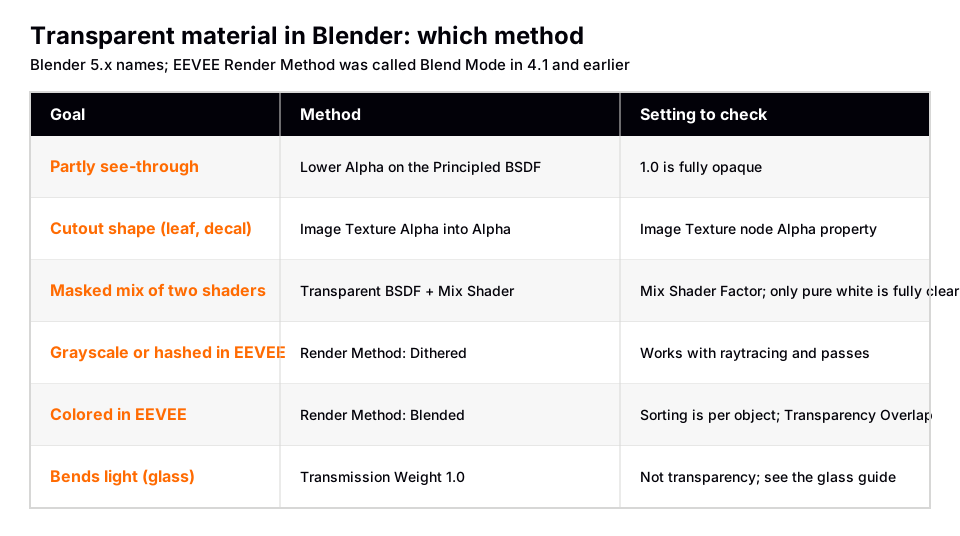
- Lower Alpha. The manual says Alpha controls the transparency of the surface, with 1.0 fully opaque. At 0.5 the surface is partly see-through. At 0.0 it is fully transparent.
- Switch the viewport to Material Preview or Rendered shading to see the result. Solid shading uses the separate Viewport Display settings, so it does not follow the node tree.
- In EEVEE, open Properties › Material › Settings and choose a Render Method, as explained below.
You should see through the object to what is behind it. The Principled BSDF page notes that Alpha is usually linked to the Alpha output of an Image Texture node, which is the method for cutout shapes like leaves or decals.
Sources: Principled BSDF page
The Transparent BSDF with a Mix Shader
The second method is a node setup. The manual says the Transparent BSDF adds transparency without refraction, so light passes straight through the surface as if there were no geometry there. Its Color input is the probability for each wavelength that light is blocked or passes straight through. The manual states that only pure white transparent shaders are completely transparent.
- Open the Shader Editor (the Shading workspace has one) and add a Mix Shader and a Transparent BSDF.
- Connect your surface shader (for example the Principled BSDF) to one Shader input of the Mix Shader and the Transparent BSDF to the other.
- Connect the Mix Shader output to the Surface input of the Material Output node.
- Use the Factor input to control how much of each shows. The manual says at zero the Mix Shader uses the first shader entirely and at one the second shader. A texture connected to Factor makes a patterned cutout.
This version is useful when you want a mask, for example a grayscale image that decides which parts of the surface are see-through. A plain Alpha value on the Principled BSDF is shorter when you just need the whole surface partly transparent.
Sources: Transparent BSDF
Use the alpha channel of an image
For a PNG with transparency, add an Image Texture node, load the image, connect its Color output to Base Color and its Alpha output to the Principled BSDF Alpha. The manual's Image Texture page says the Alpha output is the alpha channel of the image. It also says that if the image has transparency, the Color output is premultiplied when the Alpha output is used, and non-premultiplied (straight) otherwise. The node's Alpha property sets how the image uses its alpha channel.
If the cutout has a dark or light fringe, check that Alpha property first. For more on image textures, see how to add a texture in Blender.
Sources: Image Texture page
EEVEE settings that change transparency
In the EEVEE Material Settings of Blender 5.x, open Properties › Material › Settings.
- Render Method: Dithered. Allows grayscale hashed transparency and works with render passes and raytracing. Hashed transparency is noisy by nature, and more render samples reduce the noise.
- Render Method: Blended. Allows colored transparency but is incompatible with render passes and raytracing. The manual calls it forward rendering.
- Transparency Overlap. Only available for Blended. If enabled, all transparent fragments render. If disabled, only the front-most surface fragments render, which the manual says can fix sorting problems caused by blending order.
- Transparent shadows. Use transparent shadows if the material contains a Transparent BSDF. The manual says disabling renders faster but gives inaccurate shadows.
- Backface Culling. Hides the back side of faces, with separate Camera, Shadow and Light Probe Volume options. The manual says to turn it on whenever possible because it affects performance. Leave it off if you need to see the inside of a see-through object.
The manual also describes an "alpha clip" fix for noisy edges: when using raytracing with Dithered, quantize the alpha value to 0 or 1 with a Greater Than operation in a Math node.
The sorting problem with Blended
With Blended, the order in which transparent surfaces blend changes the final color. The manual says EEVEE cannot sort by pixel or by triangle. Only per-object sorting is available, based on object origin, and it has a performance cost in scenes with thousands of objects. If two transparent objects look wrong in front of each other, try Dithered, or fix the face order in Edit Mode with sort element.
What is different in Blender 4.x
The manual for Blender 4.1 describes EEVEE material settings with Blend Mode (Opaque, Alpha Clip, Alpha Hashed, Alpha Blending), Shadow Mode, Clip Threshold and Show Backface. The 4.2 manual lists Render Method with Dithered and Blended instead, which is what Blender 5.x shows. If you follow an older tutorial that says Blend Mode, those settings are the 4.1 and earlier names.
Sources: EEVEE Material Settings
Transparency in Cycles
Cycles uses the node setup directly with no Blend Mode or Render Method. Three details matter.
- Transparent bounces. The manual's Light Paths page lists a Transparent maximum under Max Bounces. It says this limit is controlled separately from the other bounces.
- Cost. The manual says each transparency step requires executing the shader and tracing a ray, so many layers of transparency affect render time.
- Transparent shadows. Cycles has a Transparent Shadows option in Material Settings. Turning it off renders faster but the manual says shadows are not accurate.
The manual also says the Transparent BSDF gets special treatment in light paths: the ray passes through unchanged, and it can be used for alpha-over compositing, which other transmission shaders cannot. If you need the background itself to be transparent in your output, see how to render a transparent background in Blender.
Transparent versus glass
The Transparent BSDF has no refraction and no reflection. Glass reflects and bends light. For a see-through, bending surface, set Transmission › Weight to 1 and lower Roughness instead, as covered in the Blender glass material guide. A material can have both: a glass pane in a transparent, cutout frame, for example.
Why your transparent material looks wrong
- Nothing changes. The viewport is in Solid shading (which uses its own Viewport Display settings), or Alpha is still 1.0.
- The object looks opaque in EEVEE. Check that Render Method is Dithered or Blended, not an older Blend Mode of Opaque in a 4.1 file.
- Objects pop in front of each other. The Blended sorting problem. Use Dithered or Transparency Overlap off.
- The cutout is noisy. Dithered is hashed transparency. Raise the render samples, or quantize alpha to 0 or 1.
- The texture looks washed out or too see-through. See why a Blender texture is too transparent.
Skip the node wiring with the Material & Lighting Vault
Transparency is one setting in a bigger material. The Material & Lighting Vault is a Blender 5.2+ extension (a Metalight tab in the N panel) with 1,690 procedural materials: 1,000 core materials in 32 categories plus 690 Pro. They work in Cycles and EEVEE, need no UVs because they use object coordinates by default (a Use UV option exists), and total about 64 MB.
Its 67 weathering presets (rust, moss, snow, soot, cracks, edge wear) work on any material, including your own, so they can sit on top of a surface you made yourself. The Vault is a tool, not a course, and the transparency settings in this guide still apply to whichever material you use.
If you want to learn shading in a fixed order, The Blender Launchpad is a curated roadmap of free YouTube lessons that starts from Blender basics and goes on to UV and PBR texturing and rendering.
Questions people also ask
How do I make a material transparent in Blender?
Lower the Alpha value on the Principled BSDF below 1.0, or mix a Transparent BSDF with another shader using a Mix Shader. In EEVEE, set the material's Render Method to Dithered or Blended.
Why is my transparent material not working in EEVEE?
Check the Render Method under Properties › Material › Settings and make sure the viewport is in Material Preview or Rendered shading. In Blender 4.1 and earlier the same setting is called Blend Mode.
What is the difference between Dithered and Blended?
The manual says Dithered gives grayscale hashed transparency and works with render passes and raytracing. Blended allows colored transparency but is incompatible with both, and it has a sorting problem.
Is a transparent material the same as glass in Blender?
No. The Transparent BSDF passes light straight through. Glass uses Transmission, which bends and reflects light.
How do I use a PNG with transparency as a material?
Connect the Image Texture node's Color output to Base Color and its Alpha output to the Principled BSDF Alpha input.
How we checked this
We did not run Blender for this guide. We read these pages on November 4, 2026, and wrote only what they confirm:
- Blender Manual (5.2 LTS), read November 4, 2026: Principled BSDF, Transparent BSDF, Mix Shader, Image Texture node, EEVEE Material Settings, Cycles Light Paths, Cycles Material Settings, Light Path node, Material Output node.
- Blender Manual 4.1 and 4.2, read November 4, 2026: the EEVEE material settings page for 4.1, for the Blend Mode names.
We could not confirm from the manual the default values of the Render Method on a new material, so we do not state one. We also did not confirm exact wiring screenshots for the Transparent BSDF and Mix Shader setup beyond the manual's description of each node.