When a Blender texture is too transparent, the cause is almost always the alpha channel: the Image Texture node's Alpha output is plugged into the shader, the image's Alpha mode reads the wrong data, or the material's render settings treat the surface as see-through. Unplug Alpha, or set the image's Alpha mode to None, and the surface turns opaque.
The same settings also decide how to make a texture transparent on purpose and why a transparent texture may cast no shadow. This guide goes through them in the order that finds the problem fastest. It follows the Blender 5.2 LTS manual, and it says where the older 4.1 manual used different names.
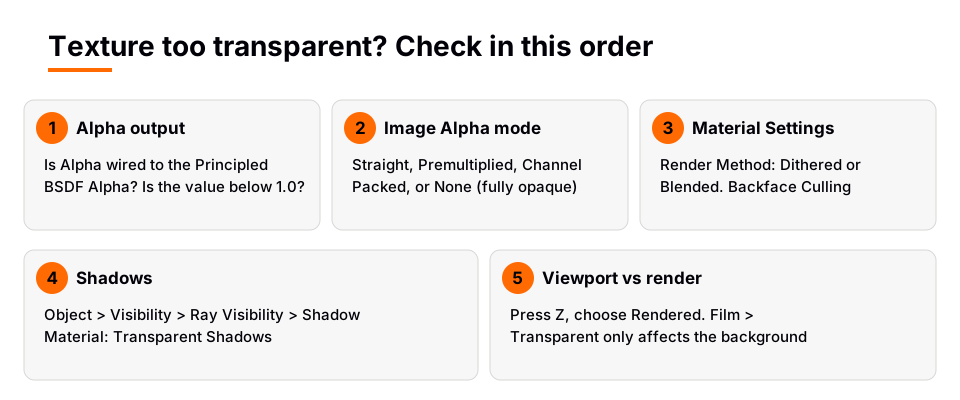
Quick diagnosis: what you see and what to check
| What you see | Most likely cause | First fix |
|---|---|---|
| Whole surface looks faded or see-through | Alpha is below 1.0 or driven by the image | Unplug Alpha from the Principled BSDF |
| Parts of the texture are holes | The image has transparent pixels, or Alpha mode is wrong | Set image Alpha to None, or fix the mode |
| Transparent areas cast a solid shadow, or no shadow at all | Shadow settings on the material or object | See the shadow section below |
| Looks fine in the viewport, wrong in the render | Different engine or shading mode | Test in Rendered view with the same engine |
Check where the Alpha output goes
The Image Texture node has two outputs, Color and Alpha. The manual describes the Principled BSDF's Alpha input as controlling the transparency of the surface, with 1.0 fully opaque, and says it is usually linked to the Alpha output of an Image Texture node. If you want a solid texture, that link should not exist.
- Open the Shader Editor and select the object so its material nodes show.
- Look at the Principled BSDF. If a wire runs into its Alpha input, drag it off.
- Set the Alpha value to 1.0. A value below 1.0 keeps the surface partly transparent even with nothing connected.
- Check for a Mix Shader that blends the Principled BSDF with a Transparent BSDF. A Mix Shader uses the first shader at a Factor of zero and the second at one, so a Factor that favors the Transparent BSDF makes the surface fade.
The Transparent BSDF is described in the manual as adding transparency without refraction, with rays passing straight through the surface, and only a pure white one is completely transparent. A gray Color input therefore gives a partly transparent surface, which is another way a texture ends up too faint.
Set the image's Alpha mode
Each image has an Alpha setting that says how Blender reads its alpha channel. The manual notes it is only available if the image format supports transparency, which is why a JPEG never shows it. It also appears on the Image Texture node.
| Alpha mode | What the manual says | Use it when |
|---|---|---|
| Straight | RGB and alpha stored separately, alpha acting as a mask. Common for PNG. | The image is a PNG with a cutout or soft edge |
| Premultiplied | RGB stored with alpha multiplied in. Natural for renders and used by OpenEXR. | The file came from a render or an EXR |
| Channel Packed | Different images packed in RGB and alpha, which should not affect each other. | Alpha holds another map, such as roughness |
| None | Ignore the file's alpha channel and make the image fully opaque. | You want a solid surface |
Two of these explain most "too transparent" cases. If a texture stores another map in its alpha channel and Blender reads it as transparency, the surface looks full of holes. Pick Channel Packed so the alpha does not act as opacity, or None to ignore it. Both are described on the Image Settings page of the manual.
The manual also says the Image Texture node's Color output is premultiplied if the Alpha output is used, and straight otherwise. If the edges of a cutout look dark or bright, compare the Alpha mode and the way you connect the outputs first. Mask images that are not colors, such as a separate grayscale opacity map, should use the Non-Color color space, because the manual says images that do not strictly contain colors should never have a color conversion applied.
One more cause hides in the node itself. The Extension setting controls what happens when the coordinates fall outside the image, and the manual says Clip sets all exterior pixels to transparent black. If UVs sit outside the 0 to 1 square, a texture set to Clip shows transparent areas. Switch to Repeat or Extend.
Sources: Image Settings page of the manual
How to make a texture transparent in Blender
To make a texture transparent on purpose, send its alpha into the shader. This answers how to make a texture transparent in Blender for a PNG with a cutout, such as a leaf or a decal.
- Add an Image Texture node (Shift+A, then Texture) and open your PNG. Keep the Alpha mode on Straight for a normal PNG.
- Connect Color to the Principled BSDF's Base Color.
- Connect Alpha to the Principled BSDF's Alpha.
- Open Material Properties, then Settings, and set the render settings described in the next section.
For a uniform see-through surface with no image alpha involved, skip step 3 and type a value below 1.0 into the Alpha input. A second route uses a Mix Shader: put a Transparent BSDF in the first shader slot, the Principled BSDF in the second, and drive Factor from the image's Alpha. Where alpha is 1 you see the Principled BSDF, and where it is 0 you see through. The full material walkthrough is in the Blender transparent material guide, and the basics of loading the image are in how to add a texture in Blender.
Material Settings: Render Method and Blend Mode
EEVEE decides how to draw transparency from the material's settings. In the Blender 5.2 LTS manual the panel is Material Properties then Settings, with a Render Method:
- Dithered allows grayscale hashed transparency and is compatible with render passes and raytracing.
- Blended allows colored transparency but is incompatible with render passes and raytracing. EEVEE sorts by object origin only, so overlapping transparent objects can draw in the wrong order.
- Transparency Overlap is only available for Blended. Disabled, only the front-most surface fragments render, which the manual says can fix sorting issues.
If a tutorial mentions Blend Mode with Opaque, Alpha Clip, Alpha Hashed and Alpha Blending, it was written for the older EEVEE. The Blender 4.1 manual lists exactly those four options, plus a Show Backface checkbox and a Clip Threshold. Opaque ignores the alpha component entirely, which is the 4.1 way to make a see-through texture solid. Cycles has no Blend Mode, and its material settings page lists a Transparent Shadows checkbox instead.
One more setting can hide a face: Backface Culling. The 5.2 manual says it hides the back side of faces, with separate options for Camera, Shadow and Light Probe Volume. A plane that looks transparent from one side may just have backface culling on.
Blender transparent texture with no shadow
A transparent texture can cast no shadow, or a full rectangular shadow, depending on three separate settings.
- Object shadow switch. In Object Properties, under Visibility and Ray Visibility, the Shadow option enables the object to cast shadows. Both the Cycles and EEVEE manuals list it. If it is off, nothing casts.
- Transparent shadows. Cycles and EEVEE both have a Transparent Shadows checkbox in the material settings. The manual says to use transparent shadows if the material contains a Transparent BSDF, and that disabling it renders faster but does not give accurate shadows. Because the manual ties this setting to the Transparent BSDF, the Mix Shader setup above is the one it documents.
- Old shadow mode. In the 4.1 manual, the material's Shadow Mode offered None, Opaque, Alpha Clip and Alpha Hashed. With None the surface casts no shadow; with Opaque it casts a solid one.
If shadows look grainy, the EEVEE manual says Jittered Shadows are always enabled for final renders and also affect transparent shadows. When EEVEE raytracing with the Dithered method leaves noisy edges around transparent areas, the manual suggests an alpha clip setup: use a Greater Than Math node to push alpha to either 0 or 1.
Viewport versus render: why it looks different
The viewport can mislead you. The manual says the Viewport Display settings in the material are a faster alternative to full shader nodes for solid shading, so they do not reflect your node tree. Press Z and choose Rendered to see the real result with your chosen engine. Also check Film in Render Properties: Transparent makes the world background transparent for compositing. It does not change your texture, and a transparent look in a saved PNG may only be that setting. See how to render a transparent background in Blender.
Finally, if the object is missing from the render and not just faint, check Visibility in Object Properties. Show In has Viewports and Renders switches, and a Holdout mask punches a hole with zero alpha. For other materials that do not display, see why a material is not showing in Blender.
Learn this in order with The Blender Launchpad
Alpha problems usually come from not knowing which settings belong to the image, the node tree or the material. The Blender Launchpad gives you a roadmap of hand picked, free YouTube lessons in six stages, and one stage is UV and PBR texturing, where nodes, image textures and materials are taught in sequence. Stage one assumes you have never opened Blender.
It is a curated playbook, not original video lessons, and it is one payment with no subscription. The bonuses include more than 1,000 CC0 assets, HDRIs and textures that are free for commercial use, which gives you clean texture sets to practice on. For the node side, read the Blender material nodes guide.
Questions people also ask
Why is my texture too transparent in Blender?
The Image Texture's Alpha output is probably connected to the Principled BSDF Alpha input, or the Alpha value is below 1.0. Unplug it, set Alpha to 1.0, and set the image's Alpha mode to None if the file has an unwanted alpha channel.
How do I make a texture transparent in Blender?
Connect the Image Texture's Alpha output to the Principled BSDF's Alpha input, then set the material's Render Method in Material Properties. For a plain see-through surface, lower the Alpha value instead.
Why does my transparent texture cast no shadow in Blender?
Check the object's Shadow option under Ray Visibility, then the material's Transparent Shadows checkbox. The manual says that checkbox applies when the material contains a Transparent BSDF.
Why does a PNG texture show holes in Blender?
The PNG has transparent pixels, its alpha channel stores another map, or Extension is set to Clip with UVs outside the image. Set the image's Alpha mode to None to make it opaque, or fix the Extension setting.
How we checked this
We did not run Blender for this guide. We read these pages on November 4, 2026, and wrote only what they confirm:
- Blender 5.2 LTS manual, read November 4, 2026: Image Texture node, Image Settings, Principled BSDF, Transparent BSDF, Mix Shader, EEVEE Material Settings, Cycles Material Settings, EEVEE Object Settings, Cycles Object Settings, Visibility, Film, Light Paths and EEVEE Sampling.
- Blender 4.1 manual, read November 4, 2026: EEVEE Material Settings, for the older Blend Mode and Shadow Mode names.
We did not confirm which release changed the settings between 4.1 and 5.2, so we name the manual version for each claim.