Is Blender hard to learn? Blender is not hard to start, but it is large, and that size is what makes it feel hard. The Blender Manual itself says it may seem daunting at first, and that with some motivation and the right learning material you can become familiar with it after a few hours of practice. The long part is not the buttons. It is the range of things Blender does and the art skills behind them.
So the honest answer has two halves. The first hours are very learnable, because Blender's window is organized and it gives you built-in help. Getting good takes much longer, because 3D work is several crafts under one roof. This guide shows what is hard, what is not, and a realistic order to learn things in. It uses the Blender 5.2 LTS Manual as its source, and it does not promise a timeline, because no primary source publishes one.
Why people say Blender is hard to learn
When people say Blender is hard to learn, they usually mean one of these six things. Each one is real, and each one has a fix.
- It does a lot. The manual says Blender supports the entire 3D pipeline: modeling, rigging, animation, simulation, rendering, compositing, motion tracking and video editing. A beginner opens it and sees tools for all of that at once.
- The vocabulary is new. The manual says 3D software carries extra technical complexity and jargon, and names UV maps, materials, shaders, meshes and "subdivs" as the media of the digital artist. You will meet these words before you know what they do.
- Shortcuts depend on where the mouse is. The manual's page on Areas explains that some shortcuts are global, like Ctrl+S for saving, but many depend on which editor the cursor is over. Its example: select two objects in the Outliner and press Ctrl+J to join them while the cursor is still in the Outliner, and nothing happens. You have to move the cursor to the 3D Viewport first. This is the single most common "Blender is broken" moment.
- Navigation expects a three-button mouse. The manual notes that some navigation tools need a middle mouse button or a numpad, and points to its Keyboard and Mouse page for workarounds. The navigation gizmo in the top right of the 3D Viewport also helps: dragging its orbit gizmo orbits the view, and buttons below it zoom and pan.
- Nodes look intimidating. Materials and Geometry Nodes are built from node networks. The manual describes Geometry Nodes as a system for modifying the geometry of an object with node-based operations. It is powerful, and it is the last thing a beginner should open.
- The software is not the skill. The manual is direct about this: Blender remains a tool, and great artists do not create masterpieces by pressing buttons, but by learning subjects like human anatomy, composition, lighting and animation principles. If your first renders look flat, that is usually an art problem, not a Blender problem.
What is not hard
Several things the manual describes make the first hours easier than they look. If you wondered "is Blender easy to learn?", this is the case for yes.
| Feature | What the manual says | Why it helps |
|---|---|---|
| A simple layout | The window has a Topbar, Areas in the middle and a Status Bar at the bottom | Three parts to learn, not thirty |
| Workspaces | Predefined layouts for tasks such as Modeling, Sculpting, UV Editing, Texture Paint, Shading and Animation | Click a tab and the right editors appear |
| Tooltips and F1 | Hover over a control for a tooltip; press F1 to open the manual page for it | Help is one key away |
| Undo | Ctrl+Z rolls back; Shift+Ctrl+Z redoes | You can experiment safely |
| Modifiers | Automatic operations that act non-destructively | The base mesh stays editable |
| Free and open source | Described in the manual as the free and open-source 3D creation suite | No license barrier to starting |
The manual adds a caveat on the F1 help: it does not yet have 100% coverage, so some tools show an alert in the header instead of opening a page. For everything else, it opens the page that matches the button under the cursor.
A realistic order to learn Blender
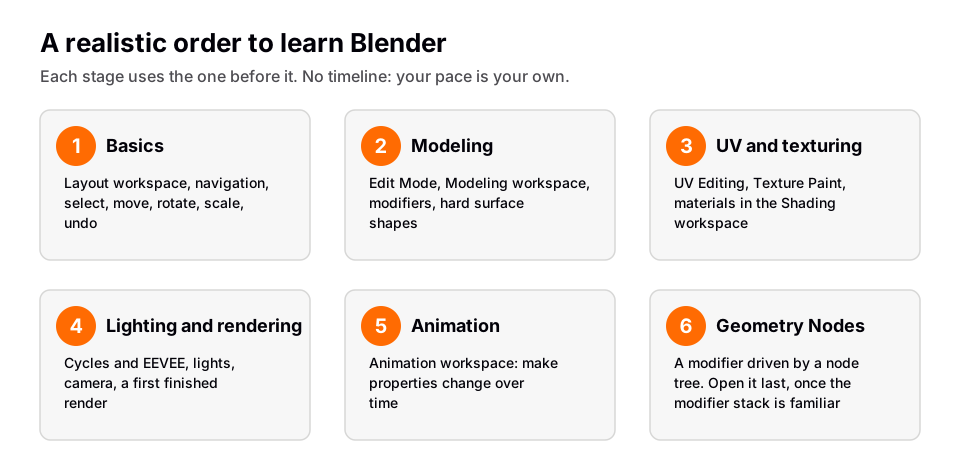
The order matters more than the speed. Each step below uses the one before it, and the manual's own workspace list follows roughly the same path. We give no day counts, because the sources do not publish any and your schedule is your own.
- Learn the window. Open the Layout workspace. The manual says it contains a 3D Viewport (top left), an Outliner (top right), a Properties editor (bottom right) and a Timeline (bottom left). Hover over each one and notice what it holds. You should be able to say in one sentence what each area is for.
- Navigate the 3D Viewport. Orbit with the middle mouse button or drag the navigation gizmo. Click an axis label on the gizmo to align the view to that axis. After this you can look at your scene from any side without getting lost.
- Select, move, rotate, scale, undo. Press A to select all, then use G to move, R to rotate and S to scale, per the manual's Transform pages. Press Ctrl+Z when you do not like the result. Do this until it is automatic.
- Model a simple object. Press Tab to switch between Object Mode and Edit Mode, and try the Modeling workspace. Then add modifiers from the Modifiers tab in the Properties editor. This is where hard surface modeling starts.
- Unwrap and texture. The UV Editing and Texture Paint workspaces are for mapping image textures to a surface and for painting colors in the 3D Viewport. Use them when you have a model worth texturing. Our guide to how to UV map in Blender covers it.
- Light and render. Choose a render engine in the Render properties. The manual describes Cycles as the physically based path tracer for production rendering and EEVEE as the real-time engine focused on speed and interactivity, and says EEVEE materials use the same shader nodes as Cycles. Start with how to render in Blender.
- Animate. The Animation workspace is for making properties of objects depend on time. Learn it after you can model, because animation is easier when the objects already exist.
- Open Geometry Nodes last. By now the modifier stack is familiar, and Geometry Nodes is a modifier with a node tree attached. It will make sense because you already know where the modifier lives.
That is the whole path in general terms: basics, modeling, UV and texturing, lighting and rendering, animation, Geometry Nodes. Skipping ahead is possible, but each skipped step is usually where a later "this is hard" feeling comes from.
When it feels hard for the wrong reason
Some of Blender's difficulty is really a setup mismatch. Check these before you decide you are the problem.
- A shortcut does nothing. Check which editor the cursor is over. Move it to the 3D Viewport and try again.
- Your colors do not match the tutorial. The manual says that if your colors differ from the manual's, your default theme may have been altered. You can change themes in the Preferences, on the Themes tab.
- Your keys differ from the tutorial. On first launch Blender offers keymap presets: Blender (the default), Blender 2.7x and Industry Compatible. The manual says it assumes the default Blender keymap, and the same goes for most tutorials. Mouse Select also lets you pick which button selects.
- The tutorial is for another version. Blender releases roughly every three months, and the manual says Long-term Support releases come out yearly and are supported for two years. Menus move between versions, so match your version to the lesson when you can.
- You have no middle mouse button. Use the navigation gizmo, or see the manual's Keyboard and Mouse page.
If you want to see how long the whole journey takes, read how long it takes to learn Blender. For a ranked look at learning methods, see the best way to learn Blender.
Learn this in order with The Blender Launchpad
The hardest part of learning Blender alone is not any one tool. It is not knowing what to learn next, and ending up in an advanced tutorial that assumes things you skipped. The Blender Launchpad is built to remove that. It is a members app with a roadmap of hand picked, free YouTube lessons in six stages: Blender basics, hard surface modeling, UV and PBR texturing, studio lighting and rendering (Cycles and EEVEE), animation, and Geometry Nodes. The Geometry Nodes Launchpad inside it has eight modules.
Stage 1 assumes you have never opened Blender. It is a curated playbook, not original video lessons, so the value is the order and the filtering of what to watch. It also has three bonuses: niche and portfolio building, LinkedIn branding, and a library of 1,000+ CC0 assets, HDRIs and textures that are free for commercial use. One payment, no subscription.
Questions people also ask
Is Blender hard to learn?
The basics are manageable, and the manual says familiarity can come after a few hours of practice. Mastery is harder because Blender covers modeling, animation, rendering and more, and results depend on art skills too.
Is Blender easy to learn for beginners?
It is easier than it looks if you start in the Layout workspace and add one skill at a time. Tooltips, F1 manual access, workspaces and undo all help beginners.
How hard is it to learn Blender?
No primary source gives a fixed time or a difficulty score, so we do not either. How hard it feels depends on how much of the pipeline you want and how often you practice.
Do I need to be good at art to learn Blender?
No, but it helps over time. The manual says artists get good by learning subjects like anatomy, composition, lighting and animation principles, not just the buttons.
Do I need a middle mouse button?
Some navigation tools need one or a numpad, but there are workarounds. The navigation gizmo in the 3D Viewport lets you orbit by dragging and has buttons for zooming and panning, and the manual's Keyboard and Mouse page covers the rest.
How we checked this
We read these pages of the Blender Manual 5.2 LTS on November 4, 2026. We did not run Blender for this article.