
The LoopTools add-on is a free mesh modeling toolkit for Blender that adds Bridge, Circle, Curve, Flatten, Loft, Relax and Space tools for working on edge loops and face groups in Edit Mode. You install it from Preferences, Get Extensions, enable it, and find the tools in the 3D Viewport sidebar (Edit tab) and in the Edit Mode context menu.
This guide uses the extensions.blender.org page for LoopTools, read November 4, 2026, and the Blender 4.1 Manual page for its tools, because the current Blender 5.2 LTS manual no longer has a LoopTools page. We did not run the add-on, so setting names come from that older manual page and may differ slightly in version 4.7.7.
What the LoopTools add-on is
The extension page describes LoopTools as a "Mesh modelling toolkit. Several tools to aid modelling." It lists version 4.7.7, the GNU General Public License v2.0 or later, original authors Bart Crouch and Vladimir Spivak (cwolf3d), and support for Blender 4.2 LTS and newer. It shows no price and offers a direct download.
The page adds one status note. It says the extension was a bundled add-on in Blender 4.1 and is now offered "as it is, with limited support". That is the page's own wording, so on Blender 4.2 and later you install it yourself instead of finding it already there. People also search for it as "loop tool Blender addon"; both spellings point to the same add-on.
How to install LoopTools
The Get Extensions page of the Blender Manual (5.2 LTS) lists the ways to install an extension. Use the first one that works for you:
- From Blender. Open Edit > Preferences, go to Get Extensions, search for LoopTools and click Install.
- From the website. On the extension page, drag the installation URL into Blender.
- From Disk. Download the ZIP from the page, then use the drop-down menu in the top right of Get Extensions and choose Install from Disk, or drag and drop the .zip into Blender. The manual says this goes into a Local Repository and no updates will be available.
Then make sure it is enabled. The Add-ons page of the manual says to check the box to the right of the add-on, and the functionality should be available immediately. If it does not activate, check the Console window for errors. The Get Extensions manual page notes that you must check manually for updates, and an Update All button appears when some are available.
Sources: Get Extensions page of the Blender Manual · Add-ons page of the manual
Where the tools appear
The extension page lists the location as the View3D sidebar (Edit tab) and the Edit Mode context menu. The tools are mesh tools, so enter Edit Mode first: select a mesh object and press Tab. Open the sidebar of the 3D Viewport and pick the Edit tab, or right-click to open the context menu. The page does not list the tools, so match what you see against the seven in this guide.
If you do not, check that the add-on is enabled and that you are in Edit Mode, not Object Mode. The 4.1 manual's older activation steps (Preferences, Add-ons, Mesh, Loop Tools) apply to the legacy version only.
What each LoopTools tool does
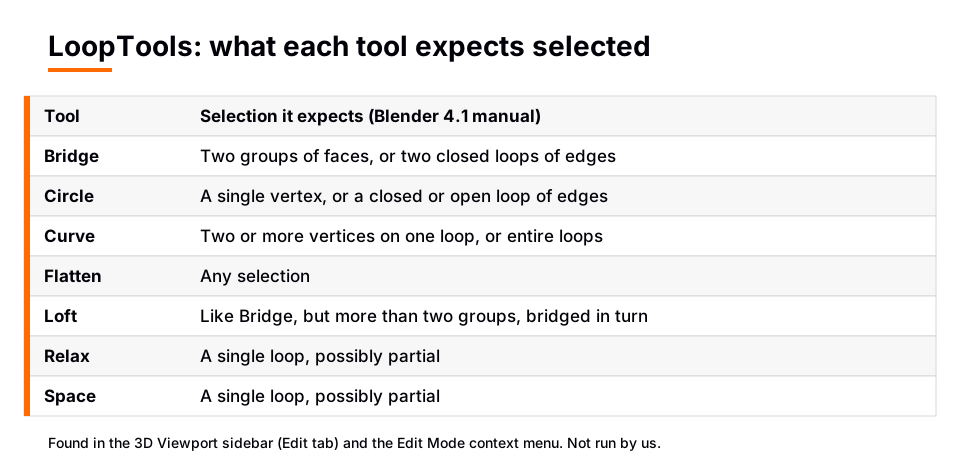
These descriptions come from the Blender 4.1 Manual. Each tool needs a certain kind of selection.
Bridge and Loft
Bridge connects two groups of faces or two closed loops of edges. Select the two groups, run Bridge, and you should see new faces spanning the gap. Its settings include Segments (zero lets the script choose the count so faces stay square), Interpolation (cubic or linear), Strength (only for cubic), Remove Faces, Twist and Reverse. Use Twist or Reverse only when the result looks wrong or inverted. Select two or more faces and run Bridge to create a hole.
Loft takes the same kind of input, but you can select more than two groups and they are bridged one after another. A Loop option connects the first and last loop. The manual says Bridge and Loft share settings, so changing one changes the other.
Circle
Circle takes a single vertex or a closed or open loop of edges. Its Method is Best Fit or Fit Inside, and Fit Inside keeps vertices from moving away from the center, which helps retain the surrounding topology. Other options are Flatten, Radius, Regular and Influence. At 0 percent Influence nothing changes, and at 100 percent the input becomes a full circle.
Curve
Curve works on two or more vertices on one loop, or on entire loops. If a full loop is selected, it operates on all loops perpendicular to it, using the selected loop as control points. Interpolation is cubic (a natural cubic spline) or linear. Restriction can limit movement to Indent or Extrude, and Boundaries stops the curve at the input vertices.
Flatten
Flatten accepts any selection. The Plane option is Best Fit, Normal or View. View flattens onto a plane perpendicular to the viewport angle, so nothing appears to change until you rotate the view.
Relax and Space
Both take a single, possibly partial, loop. Relax has Interpolation, Input (Selection or Parallel (all)), Iterations and Regular. The manual warns that on a closed loop you should use cubic, because linear interpolation makes the loop's volume diminish quickly. Space spreads the vertices of a loop evenly, with Interpolation, Input and Influence.
When a tool gives a bad result
- Tools are missing. Confirm you are in Edit Mode and the add-on is enabled.
- Bridge looks twisted or inside out. Adjust Twist, or turn on Reverse, as the manual suggests.
- Relax shrinks a loop. Switch Interpolation to cubic on closed loops.
- Circle or Flatten moves too much. Lower Influence.
- Selection is wrong. Re-check the input each tool expects; Relax and Space need a single loop.
LoopTools is useful for clean topology, which supports later steps like UV unwrapping. If you want more modeling add-ons, see the best free Blender add-ons, the Extra Objects add-on and retopology add-ons for Blender.
Learn this in order with The Blender Launchpad
Add-ons like LoopTools make more sense once you can already move around a mesh, select loops and think about topology. The Blender Launchpad is a members app with a roadmap of hand picked, free YouTube lessons in six stages. Stage 1 assumes you never opened Blender, and stage 2 is hard surface modeling.
It is a curated playbook, not original video lessons, with one payment and no subscription. It also includes 1,000+ CC0 assets, HDRIs and textures that are free for commercial use.
Questions people also ask
What does the LoopTools add-on do in Blender?
It adds mesh tools for Bridge, Circle, Curve, Flatten, Loft, Relax and Space. They act on selected edge loops, face groups or vertices in Edit Mode.
Is the loop tool Blender addon free?
The extensions.blender.org page shows a GPL v2.0 or later license, a direct download and no price. The page also says it is offered with limited support.
How do I install LoopTools in Blender 5?
Open Edit, Preferences, Get Extensions, search for LoopTools and click Install, then make sure it is enabled. The extension page lists Blender 4.2 LTS and newer.
Where is LoopTools in Blender?
The page lists the View3D sidebar (Edit tab) and the Edit Mode context menu, so you need to be in Edit Mode.
How we checked this
We read these pages on November 4, 2026: the LoopTools page on extensions.blender.org, the Blender 4.1 Manual page for Loop Tools (the extension page links to it, and the 5.2 LTS manual has no matching page), and the Blender Manual (5.2 LTS) Get Extensions and Add-ons pages. We did not run Blender or LoopTools.
We could not confirm that every setting label in the 4.1 manual is unchanged in version 4.7.7. We did not use any ratings or download counts, and the extension page does not list the individual tools.