
BoxCutter is a paid, third-party add-on for Blender that lets you draw a shape in the 3D Viewport and use it as a boolean cutter. It is not part of Blender, but Blender's own Knife tool, Bisect, Intersect (Boolean) and Boolean modifier cover the same kinds of cuts without installing anything.
This guide explains what BoxCutter and Hard Ops are, using only what their own pages say (read November 4, 2026), then shows the built-in tools from the Blender 5.2 LTS manual so you can decide whether you need an add-on at all. Prices change, so we left them out; the listing shows the current one.
BoxCutter in Blender: what it is
The BoxCutter listing on Superhive (the marketplace formerly called Blender Market) describes it as a cutter for Blender, "non-destructive by nature, destructive by choice." According to the listing, shapes stay live until you decide to apply them. You start the tool, then click and drag to make a shape, and the listing says it works with a mouse, a pen or a tablet.
The listing's details panel, as we read it on November 4, 2026, shows these facts:
- Type: Add-on, with the Blender version range given as 3.5 to 5.2.
- License: GPL.
- Seller: TeamC, with a link to the seller's website.
- Price: shown on the listing, so check it there before you decide.
We searched extensions.blender.org for "boxcutter" on the same day. It returned no BoxCutter listing, so BoxCutter is not available from Blender's official Extensions platform at the time of writing. Superhive's support page says that on Blender 4.2 or newer you can add Superhive as a remote repository, and products that show an Extension Type, as BoxCutter's listing does, can then be installed and updated from inside Blender.
Sources: Superhive · extensions.blender.org
The seven modes BoxCutter lists
The BoxCutter documentation says it has seven draw modes. We summarize what each page says. The docs describe older releases (they name 714 as the most recent as written), so treat the Superhive listing as the source for the current version.
| Mode | What the docs say |
|---|---|
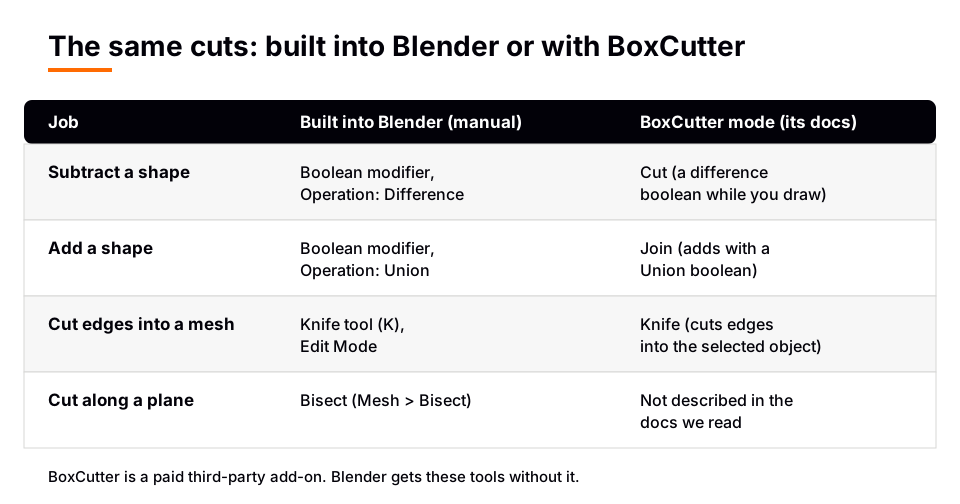
| Cut | Subtracts using a difference boolean while you draw and extrude the shape |
| Slice | Duplicates the mesh, using difference on the first and intersect on the second |
| Inset | For curved but simple shapes, using slicing and solidify |
| Join | Adds to the selected mesh using a union boolean |
| Knife | Cuts edges into the selected object |
| Extract | Turns the booleans already in the mesh into a custom cutter |
| Make | Creates a shape without adding a boolean |
The docs also list four draw shapes: Box, Circle, NGon and Custom. For getting started, they say Alt+W starts the tool and W exits it, that it is an active tool you leave by choosing another tool, and that a help area in the N panel fills with options as you work. The docs say that in Edit Mode you will not see non-destructive booleans, so there is a button to apply them.
Built-in alternatives in Blender
Everything below is in Blender 5.2 LTS and needs no add-on. Each links to the manual page we read.
- Knife Topology Tool. In Edit Mode, press K or choose Knife in the Toolbar. Click to place cut points, then press Spacebar or Return to apply the cuts, or Esc to cancel. Shift+K cuts only selected geometry.
- Bisect. In Edit Mode, choose Mesh > Bisect or use the Bisect tool in the Toolbar. It cuts the selected geometry in two with an infinitely large plane, with Fill and Clear Inner/Outer options in the Adjust Last Operation panel.
- Intersect (Boolean). In Edit Mode, choose Face > Intersect (Boolean). It performs Intersect, Union or Difference between selected and unselected geometry of the same mesh, with a Float or Exact solver.
- Knife Project. Choose Mesh > Knife Project to project the outline of a curve or flat mesh onto your object and create new edges there.
- Loop Cut. The Toolbar tool or Ctrl+R inserts a new edge loop across a loop of faces.
- The Boolean modifier. It cuts, merges or intersects mesh objects non-destructively. Our Blender Boolean modifier guide covers the steps, and Boolean not working in Blender covers the failures.
The practical difference is workflow. With the Boolean modifier you first make the cutter object, then add the modifier on the object you want to cut and pick the cutter. BoxCutter's pitch is that you draw the cutter on screen instead. The result in both cases is a boolean operation, so the same solver limits and mesh problems apply.
Sources: Knife Topology Tool · Bisect · Intersect (Boolean) · Knife Project · Loop Cut
BoxCutter and Hard Ops
Hard Ops is a separate add-on from the same seller. Its Superhive listing calls it a workflow assistant toolkit with hard surface as the main focus, entered with the Q key, and lists a non-destructive and destructive boolean cutting system among its features. The BoxCutter documentation says Hard Ops had already proven itself as a workflow assistant, and that BoxCutter was an attempt to restart the idea with a focus on usability and simplicity.
The seller also lists a Hard Ops and BoxCutter bundle. We did not read anything on those pages that compares the two in more detail, so we do not claim more here. Whether you want either one depends on how much cutting you do and how you like to work.
Learn the workflow in order with The Blender Launchpad
BoxCutter and Hard Ops are tools. The skills under them are the same either way: how booleans behave, where bevels go, how to keep a mesh clean. The Blender Launchpad is a members app with a roadmap of hand picked, free YouTube lessons in six stages. Stage 1 assumes you have never opened Blender, and Stage 2 is hard surface modeling.
Stage 2 includes BoxCutter and Hard Ops as optional tools. It is a curated playbook, not original video lessons, and it is one payment with no subscription.
Once a cut is clean, you will want to soften the edges, so read how to bevel in Blender next. For the bigger picture, see hard surface modeling in Blender and hard surface modeling tips.
Questions people also ask
What is BoxCutter in Blender?
It is a third-party add-on sold on Superhive that lets you draw shapes in the viewport and use them as boolean cutters. It is not built into Blender.
Does Blender have a built-in BoxCutter?
No. Blender has the Knife tool, Bisect, Intersect (Boolean), Knife Project, Loop Cut and the Boolean modifier, which cover cutting and booleans without an add-on.
Is the Blender BoxCutter add-on on the Extensions platform?
A search of extensions.blender.org for "boxcutter" on November 4, 2026 found no BoxCutter listing. Its Superhive listing shows it as an add-on for Blender 3.5 to 5.2.
Do I need BoxCutter or Hard Ops to learn hard surface modeling?
The Blender Launchpad lists both as optional tools in its hard surface stage. The built-in tools in this guide are in every copy of Blender.
How we checked this
We did not run Blender or either add-on while writing this. We read these pages on November 4, 2026:
- Superhive listings for BoxCutter (titled "BoxCutter 26 : Stiletto") and Hard Ops, the seller's page, and Superhive's support article on connecting it as a remote repository in Blender.
- The BoxCutter documentation: About, Installation, Getting Started and Modes.
- extensions.blender.org, searched for "boxcutter".
- Blender Manual (5.2 LTS): Knife Topology Tool, Bisect, Intersect (Boolean), Knife Project, Loop Cut and the Boolean modifier.
We left out the price because it can change, and we did not confirm how current BoxCutter releases differ from the documentation, which describes older ones.