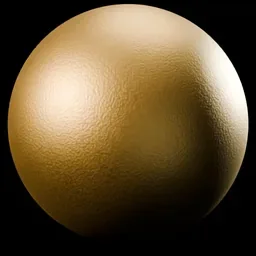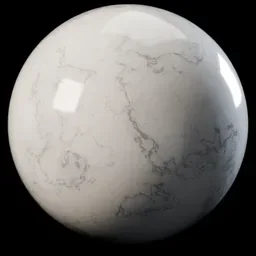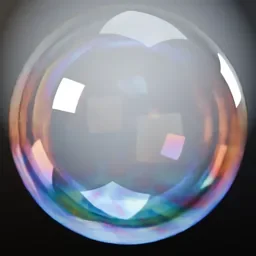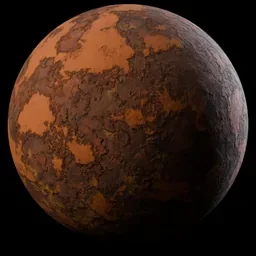
A Blender material library is a collection of ready-made materials you can drop onto objects instead of building each one in the Shader Editor. The main sources are the Material & Lighting Vault (procedural materials, paid), Poly Haven and ambientCG (free CC0 PBR textures and materials), and your own library built with Blender's Asset Browser.
Blender does not hand you a big material library out of the box. The 5.2 LTS manual lists the bundled "Essentials" asset library as hair node groups, a Smooth By Angle node group and brushes, with no materials in the list. So you add a library yourself, and this guide shows where to get one, what each source says about itself, and how to connect it to Blender.
Where to get a Blender material library
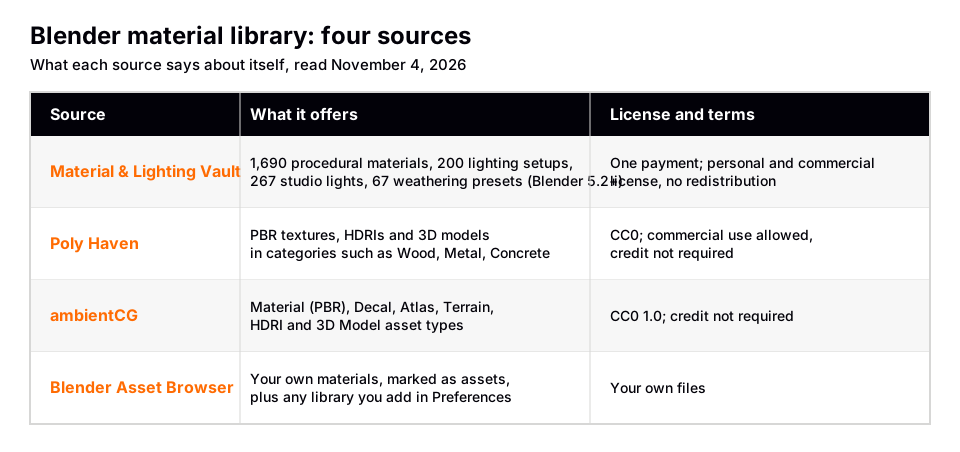
This table lists each source with what its own pages say, as read on November 4, 2026. It is a comparison of what each one offers, not a ranking.
| Source | What it is | License and terms |
|---|---|---|
| Material & Lighting Vault | Blender 5.2+ extension with 1,690 procedural materials, 200 lighting setups, 267 studio lights and 67 weathering presets | One payment; personal and commercial license, no redistribution |
| Poly Haven | PBR textures, HDRIs and 3D models, shown in categories such as Wood, Metal, Concrete and Plastic & Rubber | CC0; commercial use allowed, credit not required |
| ambientCG | Asset types include Material (PBR), Decal, Atlas, Terrain, HDRI and 3D Model | CC0 1.0; credit not required |
| Blender Asset Browser | Blender's own system for storing, tagging and reusing assets, including materials | Your own files; the manual's asset license field is optional text |
Sources: Poly Haven · ambientCG
Poly Haven
Poly Haven's license page says all its assets (HDRIs, textures and 3D models) are licensed CC0. It says you can use them for any purpose, including commercial work, and that you do not need to give credit. Its textures page groups materials into categories such as Asphalt & Bitumen, Brick & Block, Ceramic, Concrete, Metal, Stone, Textiles & Leather and Wood, and offers sorting by Hot, Top, Downloads and Latest.
Poly Haven also publishes a Blender add-on that, according to its page, pulls its assets into the Asset Browser so you can drag them into a scene without visiting the website. The page describes the add-on as a paid product for now, and says the website's assets stay free to download. We do not list a price because we cannot confirm it from one stable source.
Sources: license page · textures page · Blender add-on
ambientCG
ambientCG's license page says all assets are provided under the Creative Commons CC0 1.0 Universal license, that you can use them commercially without asking permission, and that credit is appreciated but not required. Its asset types page describes a Material (PBR) as "a material with PBR maps", and also lists Atlas, Decal, Photo Texture, Substance, HDRI, 3D Model and Terrain. Its home page lists PBR Surfaces, HDRIs, Substances and 3D Assets.
Both free sites offer image-based materials, meaning sets of texture maps you connect to a Principled BSDF. Those need coordinates to place the images, and the manual says an Image Texture node with nothing connected to its Vector input uses the object's active UV map. If that sounds unfamiliar, read how to add a texture in Blender first, and see free Blender textures for more free sources.
Sources: license page · asset types page
Blender's Asset Browser and asset libraries
The Asset Browser is where Blender shows an asset library. The manual defines an asset as a curated data-block meant for easy reuse, and a library as a collection of assets registered in the Preferences. Libraries can be directories of blend-files on your drive or, in Blender 5.2, online libraries that download assets on demand.
For materials, the manual's asset types table says a Material is a "primitive" asset: it is dragged onto an object, and when dragged onto an object it replaces the material slot. The Asset Browser's library menu offers All Libraries, Current File, Essentials and any libraries you add.
You can turn your own materials into a library. Create the material, use Mark as Asset (found in the data-block selector, the Outliner and, for objects, the Object menu), then save the blend-file inside a registered asset library folder. The manual says Blender does not copy the asset into the library for you.
Online libraries have limits worth knowing. The manual says assets from them cannot be linked directly and must be appended or packed, that downloading needs Online Access enabled in the Preferences, and that you need an internet connection for assets you have not downloaded yet.
Sources: Asset Browser
How to add a material library to Blender
- Put the blend-files in one folder. The manual says the files can be in the top-level folder or any subfolder, and the layout is up to you.
- Open the Asset Libraries section in the Preferences and add a new library. Give it a name and, for a local library, set its path. The name is only used inside Blender.
- Choose an Import Method for the library: Link keeps the asset read-only and tied to the source file, Append makes an independent copy, and Pack links it and packs it into your file.
- Open an Asset Browser area and select your library in the left region. Press T to show or hide that region.
- Drag a material from the Asset Browser onto an object. The material replaces the slot, so check that you dropped it on the right object.
The first load of a large library can take a while. The manual says Blender builds an index of the library's assets and keeps it up to date, so the next load is significantly faster.
Which kind of library fits your work
- You want photographic surfaces and do not mind setting up maps. Free CC0 texture sites fit. Check each asset's page for the maps it provides.
- You want materials that work without UV unwrapping. Procedural materials do not depend on image placement. The manual says the Noise Texture node uses Generated coordinates when its Vector input is empty.
- You want a library that matches how you work. Build your own in the Asset Browser from materials you have already made.
Whatever you choose, learn what the shader is doing. How to add a material in Blender and Blender material nodes explained cover the nodes behind any library material.
Skip the node wiring with the Material & Lighting Vault
The Material & Lighting Vault is a Blender 5.2+ extension that adds a Metalight tab in the N panel. It has 1,690 procedural materials: 1,000 core materials in 32 categories plus 690 Pro. They work in Cycles and EEVEE and need no UVs, since they use object coordinates by default. A Use UV option exists. The whole set totals about 64 MB.
It also includes 200 lighting setups that measure the selected objects and build themselves around them (19 categories, tuned for Cycles), 267 studio lights (softboxes, beam profiles, gobos, colored light textures) and 67 weathering presets (rust, moss, snow, soot, cracks, edge wear) that work on any material, including your own. That makes it a library you can combine with textures from the free sites.
It needs Blender 5.2 or newer. It has a personal and commercial license with no redistribution, and one payment. It is a tool, not a course.
Questions people also ask
What is a Blender material library?
It is a collection of ready-made materials you can apply to objects. In Blender the usual way to browse one is the Asset Browser, where you drag a material onto an object.
Does Blender have a built-in 3D material library?
The 5.2 LTS manual lists the bundled Essentials library as hair node groups, Smooth By Angle and brushes. It does not list materials, so you add a library from a source like those above or build your own.
Where can I get free Blender materials?
Poly Haven and ambientCG both state that their assets are CC0. Each asset's page tells you which files it includes, so check that before you download.
Can I use Poly Haven or ambientCG materials in commercial work?
Both sites say CC0 allows commercial use and does not require credit. Read the license page of the site you use before you rely on it.
How do I add a material library to Blender?
Add the folder in the Asset Libraries section of the Preferences, then open an Asset Browser, select the library and drag a material onto an object.
How we checked this
We did not run Blender for this guide. We read these pages on November 4, 2026, and wrote only what they state:
- Blender Manual (5.2 LTS), read November 4, 2026: Asset Libraries introduction, Asset Browser, Preferences Asset Libraries, Remote Asset Libraries, Image Texture node, Noise Texture node.
- Poly Haven, read November 4, 2026: the license, textures and Blender add-on pages.
- ambientCG, read November 4, 2026: the home page, license page and asset types page.
- Material & Lighting Vault facts come from our own product page.
We give no prices for third-party products because their pages can change. We could not confirm from the manual how a particular third-party library is packaged for the Asset Browser, so check each source's own instructions.