You can get a free HDRI for Blender from Poly Haven, whose license page says every HDRI on the site is CC0, so you can use it in commercial work without credit. Download an unclipped .exr or .hdr file (1K or 2K is enough while you work), or skip the download and use Blender's built-in Sky Texture node on the World.
This guide is about the choosing part: where free HDRIs live, what each site's own license page says, how to pick one that suits your scene, and which resolution and format to download. For loading, rotating and lighting with one, see our main guide to the Blender HDRI workflow. Everything below follows the Blender 5.2 LTS manual and the sites' own pages, read on November 4, 2026.
Where to get a free HDRI for Blender
Three sources cover most needs. The table lists what each one's own pages say about licensing.
| Source | License, as its page states | Good to know |
|---|---|---|
| Poly Haven | All assets CC0 | 12 HDRI categories; EXR and HDR downloads |
| ambientCG | CC0 1.0 Universal | Lists HDRI assets by sky and environment type |
| Blender itself | Part of Blender | Sky Texture node, solid Background color, viewport HDRIs |
Poly Haven: what the license says and what is on offer
Poly Haven's license page says all of its assets, HDRIs included, are licensed as CC0. It spells out that you can use them for any purpose, including commercial work, that you do not need to give credit (although credit is appreciated), and that you can redistribute them, even in a product you sell. Its FAQ adds one limit: you cannot claim to be the original author or re-license them.
Two details are easy to miss. The license page says the CC0 applies to the assets themselves; Poly Haven's logos and its asset example renders are protected content, so do not reuse a thumbnail as if it were CC0. The page also carries a Terms of Service that rules out web scraping or data mining without permission, so download by hand or through Poly Haven's own tools.
The HDRI catalog sorts assets into 12 categories: Abandoned & Ruins, Coast & Water, Desert & Arid, Fields & Countryside, Forest & Woodland, Industrial, Interiors, Mountains & Hills, Parks & Gardens, Pure Skies, Streets & Town and Studio. You can narrow the list by attributes such as time of day, weather, light type, contrast, season and sky view, and sort by Hot, Top, Downloads, Latest, Name or Random.
The asset page we opened (Kloofendal 48d Partly Cloudy, Pure Sky) offers EXR and HDR downloads at 1K, 2K, 4K, 8K and 16K, and also lists an 8K tonemapped JPG. That JPG is a preview-style image, not an HDR or EXR file, so do not use it to light a scene.
Sources: license page · FAQ · HDRI catalog
ambientCG and other free sources
ambientCG's HDRI listing has type filters for HDRI and HDRI Element, and categories such as Day Sky, Evening Sky, Night Sky, and Day, Evening, Night and Indoor Environment. Its license page says all ambientCG assets are provided under the Creative Commons CC0 1.0 Universal License, including for commercial purposes, with no credit required but appreciated. The HDRI page we opened offered downloads from 1K to 16K as ZIP archives.
For any other site, treat the license as part of the download. Open its license or FAQ page and look for three answers: can you use it commercially, do you have to credit the author, and can you redistribute the file with a project. If a page does not say, assume you do not have the right. A free price tag is not a license.
Sources: license page
Blender's built-in options: no download needed
You do not always need an image. The manual describes the World surface as the background and environment lighting, set as a fixed color, a sky model or an HDRI texture.
- Solid color. The only shader a world surface accepts is the Background node, with a Color and a Strength. A flat color gives even, shadowless light.
- Sky Texture node. A procedural sky with Sun Size, Sun Elevation and Sun Rotation. The manual calls Multiple Scattering the most accurate model and marks the other sky types as legacy. Sun Disc is Cycles only. The manual also warns that Single and Multiple Scattering skies are very bright by default, so lower Exposure in Color Management if needed.
- Viewport HDRIs. In Material Preview you can switch Scene World off and pick an HDRI Environment from the shading popover. The Preferences Lights section has an HDRIs panel that manages the images used there. These only light the viewport, not your final render.
The manual does not say how many HDRIs ship with Blender, so check the HDRI Environment list on your own install.
How to choose an HDRI for your scene
Look at the light, not just the picture. Ask four questions:
- Is it unclipped? Poly Haven's FAQ says an unclipped HDRI captured the full range of brightness, including the sun. A clipped (clamped) one gives lighting that is usually flat and lacking contrast. Sites often do not say when a file is clipped, so be careful with unknown sources.
- What kind of shadows do you want? Poly Haven's own article on making HDRIs notes that an overcast sky has low dynamic range, while a clear sky with a bright sun has a high one. Overcast files give soft light, sun files give directional light. We cover why in HDRI shadows in Blender.
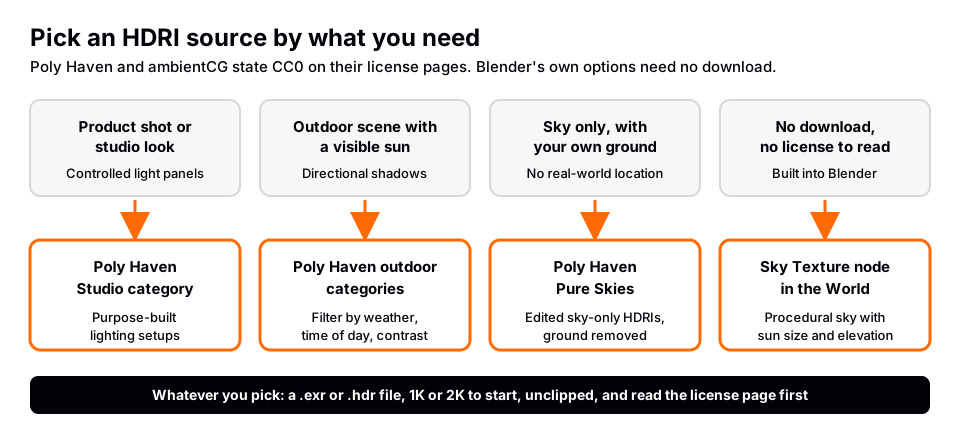
- Do you want the place? If the surroundings should not appear, use a Pure Skies HDRI (the catalog describes them as edited sky-only images with the ground removed) or hide the background from the camera in your render.
- Is it a lighting setup? The Studio category is described as purpose-built lighting setups, a natural fit for product shots.
Do not chase the EV number. The Poly Haven FAQ says there is no standard way to measure the dynamic range of an HDRI, so claims from different sites cannot be compared. The main thing to look for is whether the file is unclipped.
HDRI resolution and file format
For lighting you want a file that stores float data, so bright sources stay brighter than white. The manual's image format list shows what each type holds:
| Format | Channel depth (manual) | Use for lighting? |
|---|---|---|
| OpenEXR (.exr) | Float, 16 or 32 bit | Yes |
| Radiance HDR (.hdr) | Float | Yes |
| JPEG (.jpg) | 8 bit | No, background only |
Poly Haven's FAQ describes HDRIs on its site as 32-bit equirectangular images that cover 360 by 180 degrees, which is the Equirectangular projection of the Environment Texture node. The manual adds that images with more than 8-bit precision are converted to 32-bit float when loaded, so a large HDRI takes more memory than its file size suggests.
Start at 1K or 2K. Lighting and soft reflections do not need more. Move to 4K, 8K or 16K only when the HDRI shows as the visible background or in sharp reflections in your final frame. Leave the node's Color Space at its default unless you have a reason to change it; the manual says the default of Color suits most color images.
Load it in Blender
Once the file is on your drive: set the Shader Editor to World, add an Environment Texture node, open the file and connect Color to the Background node. The shortest version is in how to add an HDRI in Blender.
Skip the hunt with the Material & Lighting Vault
Finding the right HDRI for every product or scene takes time, because each file gives you one lighting condition and you still have to turn it and add fill. The Material & Lighting Vault is a Blender 5.2+ extension that works from your objects instead. Select them and one of its 200 lighting setups measures them and builds itself around them. The setups come in 19 categories and are tuned for Cycles.
It also has 267 studio lights, including softboxes, beam profiles, gobos and colored light textures, plus 1,690 procedural materials and 67 weathering presets, all in the Metalight tab in the N panel. The license covers personal and commercial use. It is a tool, not a course, and it sits well next to an HDRI: the HDRI supplies the environment and reflections, the setup supplies the controlled key and fill.
If you are still learning where the lighting settings live, The Blender Launchpad is a curated roadmap of free YouTube lessons, including a stage on studio lighting and rendering. Its bonuses include 1,000+ CC0 assets, HDRIs and textures free for commercial use, so you start with a library already downloaded. For textures from the same kind of CC0 sources, see free Blender textures.
Questions people also ask
Where can I get free HDRIs for Blender?
Poly Haven and ambientCG both offer HDRIs, and both pages we read state CC0 licensing. Blender also gives you a procedural Sky Texture node with no download.
Are free HDRIs OK for commercial work?
Poly Haven's license page says its assets can be used for any purpose, including commercial work, with no credit required. ambientCG's license page says the same for commercial use. Read the license page of any other site before a client project.
What resolution HDRI should I use in Blender?
Start with 1K or 2K for lighting. Use 4K, 8K or higher only if the HDRI is visible in the frame or in sharp reflections.
Can I use a JPG or PNG as an HDRI?
You can load one, but the manual lists JPEG as 8 bit, so it cannot hold a sun brighter than white. Use .exr or .hdr to light a scene.
How we checked this
We did not run Blender for this guide. We read these pages on November 4, 2026, and wrote only what they confirm:
- Blender Manual (5.2 LTS), read November 4, 2026: Environment Texture node, Sky Texture node, Background node, World lights, Viewport Shading, Preferences (Lights and Viewport) and Supported Image Formats.
- Poly Haven, read November 4, 2026: license page, HDRI catalog, the Kloofendal 48d Partly Cloudy asset page, the FAQ and the blog article on creating high quality HDRIs.
- ambientCG, read November 4, 2026: the HDRI listing, one HDRI asset page and the license page.
The manual does not state how many HDRIs ship with Blender, so we do not give a count.